A few months back my mother tried to look up a side effect of her blood pressure medication. She typed it into Google, clicked the first result, and ended up on a site that opened three pop-up ads before the page finished loading. Two of the ads were for the same drug she was researching. She closed the browser and called me, frustrated. I do not blame her. The open internet, for anyone over 60, is mostly noise: affiliate links pretending to be advice, AI-generated articles pretending to be journalism, and "senior" portals that exist to sell warranties.
I have spent the last two years building this site and watching my parents try to use other ones. I know which pages waste their time and which ones actually help. So I sat down and did the boring work. I made accounts, clicked the buttons, hit the dead links, and wrote down what happened. What follows is the short list. Ten sites I would set as bookmarks on my mother's iPad tomorrow, in the order I would teach her to use them.
Before the list, one rule
I believe the best website for a senior is one that does not try to sell anything. That single filter eliminates about 80% of the results Google returns for any health, money, or benefits question. The sites below are either government, library-funded, nonprofit, or a paid product I trust enough to recommend by name. None of them are affiliate-driven roundups dressed up as journalism.
Granted, two of them have signup friction that will frustrate you. I will flag that as we go. The trade-off is worth it.
1. SSA.gov: set up "my Social Security" once, use it forever
Go to ssa.gov and create a my Social Security account. This is the single most important bookmark on this list. Once it is set up, you can see your full earnings history, your estimated benefit at every claiming age, your current benefit if you are already receiving it, and your 1099 at tax time. You can also lock the account against fraud. There is a setting called "block electronic access" that is worth turning on if you do not plan to log in often.
The signup is annoying. SSA now requires you to verify through Login.gov or ID.me, which means uploading a photo of your driver's license and taking a selfie. My father refused for two years. He finally did it the week his card was lost in the mail. The process took 20 minutes. Once it is done, it is done.
Related reading on the field office closures: Your Social Security office may be closing.
2. Medicare.gov: the plan finder works, nothing else does
Medicare.gov has exactly one tool worth your time: the Plan Finder. Enter your zip code and your current prescriptions and it will sort Part D and Medicare Advantage plans by your projected total annual cost, premiums plus copays plus deductibles. I used this to compare 23 plans for my dad in 2022. The cheapest plan saved him $3,400 over the worst. Use it every fall during Open Enrollment, October 15 to December 7. Do not trust the agent on the phone to do it for you. They have plans they prefer to sell.
The rest of the site is a maze. The dental coverage lookup is broken half the time. The "find a doctor" feature pulls from a directory that has not been cleaned in years. Use the Plan Finder, then close the tab.
3. MedlinePlus.gov: health info without the ads
When my mother types a symptom into a search engine now, I have her start at medlineplus.gov instead. It is run by the National Library of Medicine, which is part of NIH. No ads. No pop-ups. No "doctors hate this one trick." Every page links back to the underlying clinical source, so if you want to dig in you can. The drug information pages are particularly good. They list interactions and side effects in plain language, and they will tell you when a side effect is common versus when it is rare and serious.
This is the site I wish more people knew about. WebMD will make you think you have cancer. MedlinePlus will tell you what is actually likely and when to call your doctor.
4. NIA.nih.gov: the National Institute on Aging
The National Institute on Aging publishes the clearest writing on aging-related health that exists anywhere on the open web. Sleep changes after 70. Memory loss versus normal aging. Caregiver burnout. Falls prevention. Each article is short, plainly written, and cites real research. When I write something here at SMH, I check NIA first to make sure I am not contradicting the actual evidence.
It does not have a great search tool. The trick is to use Google with "site:nia.nih.gov" before your search term. That filters out the rest of the internet and only returns NIA pages.
5. SeniorPlanet.org: actually free tech classes, taught well
Senior Planet started as Older Adults Technology Services, OATS, and was acquired by AARP in 2021. It is now the best free technology training program for adults over 60 in the country. The classes are live on Zoom, taught by patient instructors who explain things at a reasonable pace, and they are genuinely free, with no upsell at the end. The catalog includes smartphone basics, Zoom, online safety, Medicare websites, and recently a class on using AI tools.
I signed my mother up for the iPhone class last fall. She came home with a notebook full of notes and the brightness on her screen finally set to something her eyes could handle. The instructor had spent ten minutes on Display & Brightness. That is the level of detail most tech help skips. Sign up at seniorplanet.org.
6. LearnFree.org: the free basics class nobody talks about
LearnFree, which for years went by GCFGlobal, has been quietly running free computer-and-internet tutorials since the 1990s. Email basics. Word processing. How to use a browser. How to fill out a form online. The tutorials are short, video-and-text, and you do not need an account to read them. If you have a parent who never quite got comfortable with the computer, this is where I would start them. No login. No friction. Just learnfree.org and click.
7. BenefitsCheckUp.org: find money you are entitled to
This is the one most people do not know about. BenefitsCheckUp is run by the National Council on Aging, and it does one thing very well: you enter your zip code, your income, and a few household details, and it tells you every federal, state, and local benefit program you might qualify for. SNAP, LIS, MSP, LIHEAP, property tax relief, prescription assistance, all the alphabet soup in one place.
I ran it for my parents last year. It surfaced a state property tax credit they had been missing for three years. Worth thousands. The form takes about 15 minutes. No salesperson follows up. NCOA is a nonprofit and they make nothing on the referral.
8. Eldercare.acl.gov: the official Eldercare Locator
Eldercare Locator is the federal directory for state and county aging services. Type in your zip code, get the phone number for your local Area Agency on Aging. That single phone call connects you to a State Health Insurance Assistance Program counselor, who will sit on the phone with you and walk through Medicare plans for free. No commission, no plan they are pushing.
I have called my mother's local AAA three times for help with different things. Every time, a real human picked up. That is rarer than it should be.
9. ReportFraud.ftc.gov: where scam reports actually go
If you or a family member gets scammed, hit with a fake call, or sent a phishing email, this is where to report it. It is the Federal Trade Commission's intake portal, and the reports feed both their enforcement actions and the consumer alerts they publish. It takes about 5 minutes to file. You will not get your money back from filing. That is not what it is for, but you create a paper trail and you help the FTC track patterns.
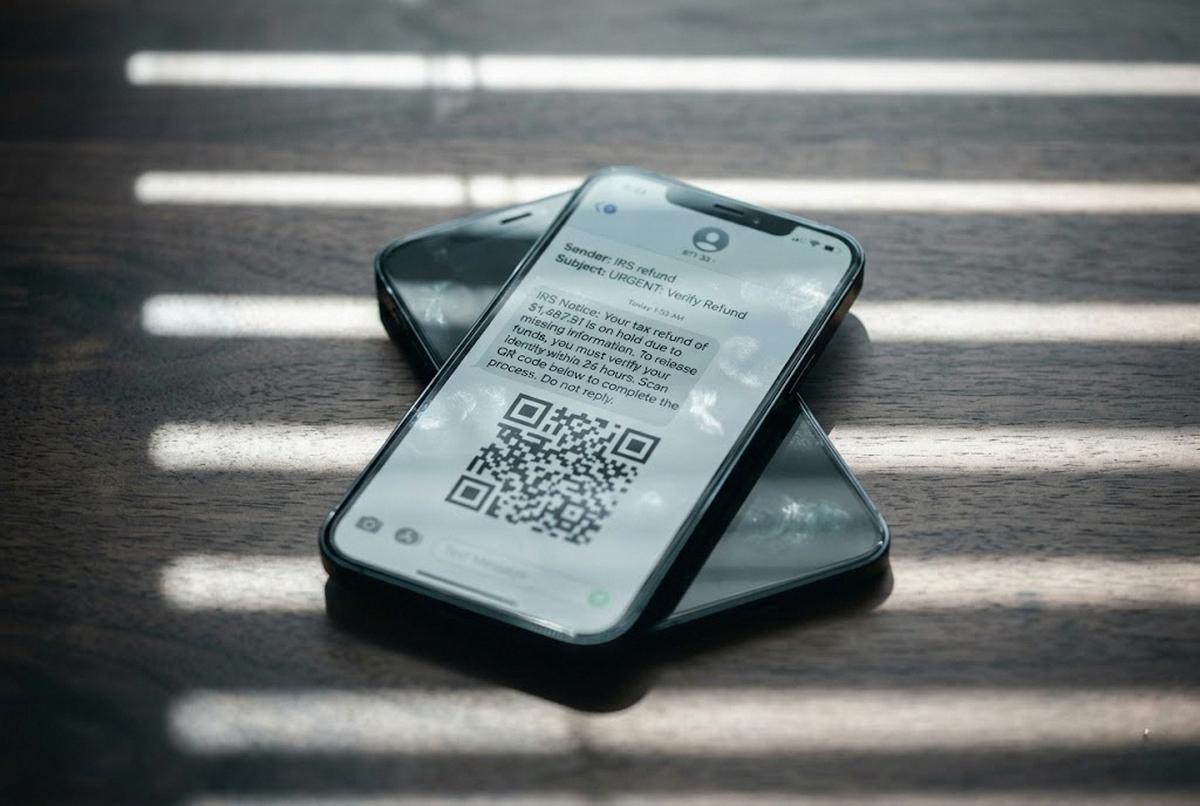
When my mother almost gave her Social Security number to a fake Medicare caller, the first thing I did after I hung up the phone was file a report here. It does not fix the problem, but it is the closest thing to a useful action that exists. Pair it with How to tell if a text message is a scam and AI voice cloning scams.
10. Libby (overdrive.com / your local library)
If you have a library card, you have free access to a few thousand eBooks and audiobooks through the Libby app or your local library's online portal. Most libraries also include free streaming through Kanopy or Hoopla, which is how my parents now watch documentaries. The catch is you need a library card and your library has to be registered with OverDrive, which almost every public library in the U.S. now is.
My mother resisted Libby for a year because she preferred paper. Then she lost her place in three different paperbacks in a single week and asked me to set it up. Six months later her hold list has 14 books on it.
The sites I tell my parents to avoid
I will be direct, because nobody else will be:
- WebMD: Will convince you that your headache is a brain tumor. The symptom checker is not bad, but the rest of the site is optimized for ad revenue, not clarity. Use MedlinePlus instead.
- "Senior" content farms: If a website has "senior," "elder," or "50+" in the URL and is full of "top 10" lists with Amazon links, close the tab. Most of those sites are AI-generated affiliate operations. I read them so my parents do not have to.
- NextDoor: Useful for finding a snowplow guy. Toxic for everything else. The political comment threads alone are reason enough to log out.
- AOL and MSN homepages: They look like news. They are mostly clickbait laid over a slot-machine ad layout. If you want headlines, bookmark AP News (apnews.com) instead.
- Facebook for health information: The single worst place on the internet to research a medication or a diagnosis. The algorithm rewards engagement, and the most engaging health posts are the wrong ones.
Granted, you may use some of these for reasons I do not. That is fine. The point is to be intentional about it. Know what the site is for, and do not let it leak into territory it is not qualified for.
How to actually save these on your device
Open each site you want to keep. In Safari on an iPhone, tap the share button (the square with the arrow), then "Add to Home Screen" or "Add Bookmark." On a desktop browser, press Ctrl-D (Windows) or Command-D (Mac) and pick a folder. Make one folder called "Government" and one called "Health" and one called "Money." Drag the bookmarks in. That is the whole system.
If you set up a parent's device, take a photo of the bookmark bar and text it to them. My mother has that photo saved as her phone wallpaper for about three weeks every time I redo her setup. It works.
What I would tell you if you called me
If you only do one thing after reading this: set up your my Social Security account at ssa.gov this week. That account is the foundation under every other money decision you will make in retirement, and the longer you wait, the more likely it is that someone else creates one in your name first. That is not a hypothetical. It is one of the more common identity-theft routes for older adults.
Then, sometime in the next month, run yourself through BenefitsCheckUp.org. Twenty minutes. The worst that happens is you learn you do not qualify for anything new. The best is you find a few hundred or a few thousand dollars you were leaving on the table.
I am still learning which sites are worth my parents' time and which ones are not. The internet keeps changing, and the people building it are not, on the whole, thinking about a 78-year-old with cataracts. So we make our own list. This is mine. If you find a site that belongs on it, write me. My email is on the contact page, and I read every message. I will test what you send and add it to the next version of this piece.
In any case, the goal is not to spend more time online. The goal is to spend less, and to make the time you do spend actually count.
— Nino C.